In order to protect your website, you need to regularly update the WordPress core as well as any installed themes and plugins. You can do this either manually or automatically.
- With manual updates, you can choose the timing of the update yourself. For example, if you don't apply an update immediately, you can wait to see if other WordPress users encounter any issues with it. However, don't forget to regularly update.
- If you opt for automatic updates, your WordPress installations will always be up to date. However, updates can sometimes cause installations to become corrupted. With automatic updates, you often only notice errors afterwards.
For security reasons, we recommend enabling automatic updates.
To update a WordPress installation manually:
-
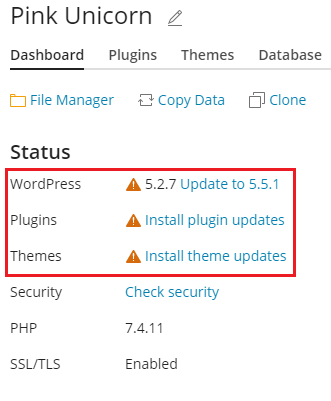
Go to WordPress. If your WordPress installation needs to be updated, you will see the corresponding messages in the "Status" section (e.g. "Install plugin updates").
-
Click on a message about available updates. The list of available updates will load. Then select the updates you want to install.
Please note: If an update is available for the WordPress core, you will see the "Restore Point" checkbox. Do not disable the checkbox. You can use the restore point to revert the update if something doesn't work as expected.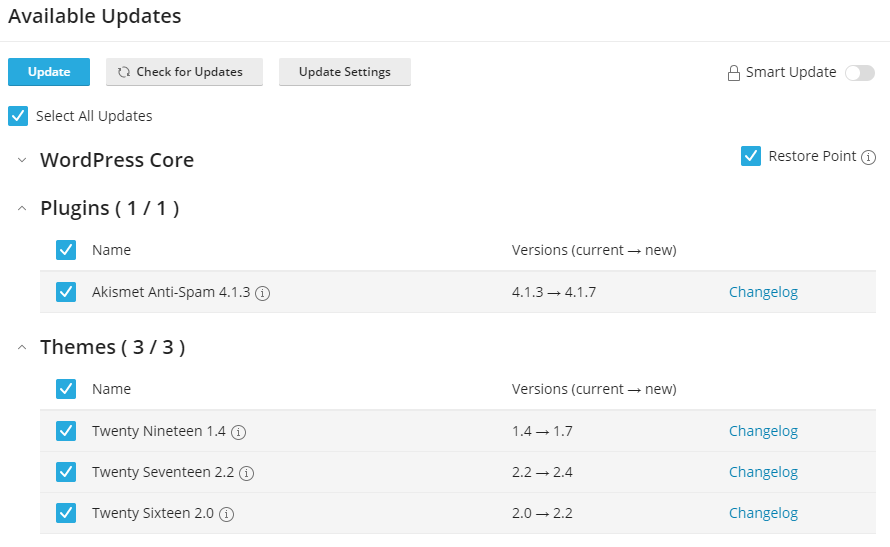
-
Click on Update.
All selected updates will then be applied.
WP Toolkit regularly searches for updates, but you can also do it yourself. To do this, click on "Check for Updates".
To configure automatic updates for a WordPress installation:
-
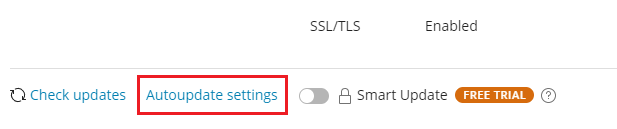
Go to WordPress, select the WordPress installation that should be automatically updated, and click on "Settings for Automatic Updates" on the installation card.
-
Select the desired settings for automatic updates. Automatic updates can be individually set, so you can activate them for WordPress plugins and themes, but not for the core. Consider these recommendations:
- If you select "No" next to "Automatically update WordPress", automatic updates for the WordPress core will be disabled. This is an insecure option.
- If your website is publicly available (production environment) and you are concerned that it could be affected by automatic updates, select "Yes, but only (security-related) minor updates".
- For non-publicly accessible versions of WordPress websites (staging), select "Yes, all updates (major and minor versions)". This will keep your staging website up to date at all times. If there are any issues with an update, only the staging website, not the production website, will be affected.
-
Click on OK.
If you believe that automatic updates could affect your website, use Smart Updates. Smart Updates allows you to update WordPress installations without risk.