Smart Updates is a feature available in WP Toolkit. It allows you to keep your websites up to date in the production environment without the risk of compromising the websites with an update. Smart Updates analyzes the potential impact of an update and notifies you of any risks.
In order to protect your websites, it is necessary to regularly update WordPress, as well as themes, plugins, and the core. However, these updates can potentially damage your websites. When manually updating websites, you need to constantly look for new updates, and your websites may not always be up to date.
If you want your WordPress installation to always be up to date but do not want to risk problems with updates, you can now use our new "Smart Updates" feature. It offers the following benefits:
-
The installation is cloned, then the clone is analyzed and screenshots of each page of the website are taken. This includes dynamic content and carousels.
-
The cloned website is updated and then analyzed again. Screenshots of the pages are taken once more.
-
Issues are detected (such as PHP issues, errors in the HTTP response code, changed page titles, etc.): Not only are the errors caused by the update displayed, but also any pre-existing problems.
-
If you have chosen to do manual updates, you can see the screenshots before and after the update, as well as a risk assessment, in Smart Updates. Here, you can compare the screenshots, access and download a detailed report on the issues found, and then decide whether the update is safe and should be applied to the production environment.
-
In the case of automatic updates, the production environment is automatically updated unless there is a problem. In this case, the update is not applied. In both cases, you will receive an email with the results of the analysis and the two groups of screenshots.
Using Smart Updates
Smart Updates is a paid feature that you can purchase from your hosting provider. It can be used with both manual and automatic updates.
To enable Smart Updates:
-
Contact your hosting provider to purchase Smart Updates. Smart Updates must be individually activated for each installation.
-
Go to WordPress and activate "Smart Update" on the installation card.
Smart Update has been activated. You can now use the feature for manual or automatic updates.
To use Smart Updates manually:
-
Ensure that you have enough storage space for a complete copy of the installation to be updated.
-
On the installation card, click "Check for Updates" and select the updates you want to install. Then click Update.
-
Wait for your website to be cloned and analyzed. This may take some time depending on the size of the website. The analysis is done in the background, so you can safely close the window.
-
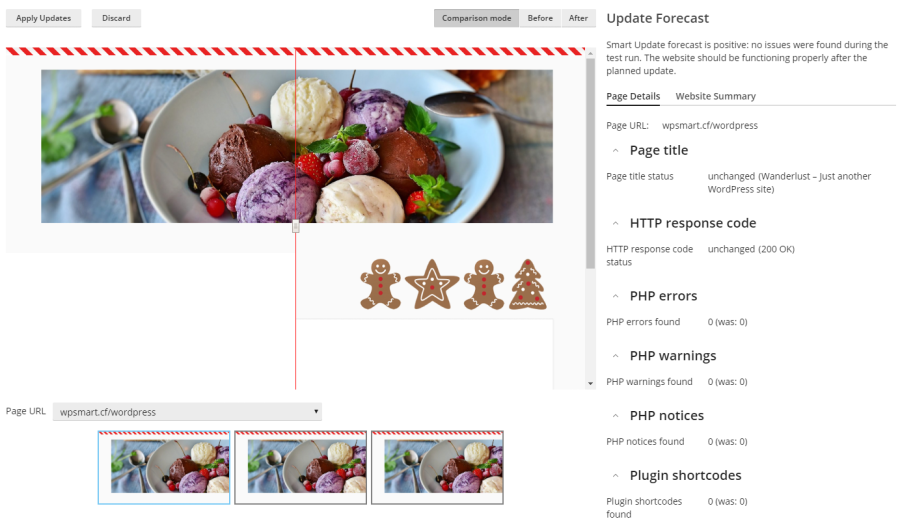
You can access the screenshots of the different pages of your website before and after the update individually or in comparison mode.
-
Select the pages of the website individually and view the detected errors. However, you can also view all the problems of an entire website and download a report on the "Website Overview" tab.
-
If Smart Updates does not detect any errors in the update and the screenshots confirm this analysis, click Apply Updates and then click OK. Smart Updates will then update the production website and delete the clone.
If you do not want to update the production environment, click Discard.
To use Smart Updates automatically:
-
Ensure that you have enough storage space for a complete copy of the installation to be updated.
-
When an update is available, Smart Updates clones the installation, updates the clone, and then analyzes it.
-
If the update does not result in any errors, the production environment is automatically updated. If Smart Updates detects at least one problem, the update is not applied. In both cases, you will receive an email with a link. Click the link to open the comparison of the screenshots of your website in a new browser window.