WP Toolkit allows you to increase the security of WordPress installations (for example, by disabling XML-RPC pingbacks and checking the security of the wp-content folder).
We call specific improvements security measures. Certain measures are considered particularly important (critical). Therefore, WP Toolkit automatically applies them to all newly created installations.
On the installation card, the following security notifications can be displayed alongside "Security":
-
- "Resolve security issues": Not all critical measures have been applied.
- We strongly recommend applying all measures.
-
- "Check security": All particularly important measures have been applied.
- However, some recommended security measures have not been applied.
- "View settings": All security measures (critical and recommended) have been applied.
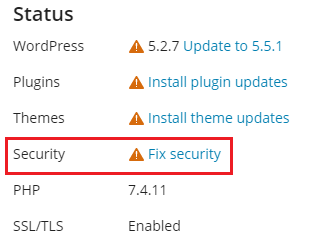
You can protect individual WordPress installations or multiple installations at once.
To protect a single WordPress installation:
- Go to WordPress, select the installation you want to protect, and then click on the message next to "Security" on the installation card (e.g., "Resolve security issues").
- The applicable security measures will then be displayed.
- Select the security measures you want to apply, and click Optimize Security.
All selected measures will then be applied.
To protect multiple WordPress installations:
- Go to WordPress and click Security.
- A list of your WordPress installations will be displayed. For each installation, you can see how many critical (
 ) and how many recommended (
 ) security measures can be applied. Click on one of the symbols to view a list of available security measures. If all security measures have been applied, the symbol
  will be displayed.
 - (Optional) If you want to access more information about the security measures and manage the measures for individual WordPress installations, click
 next to the installation. To manage multiple installations again, click
  next to "Security Status of Selected Sites".
 - Select the installations on which you want to apply the security measures and click Protect.
- By default, only critical security measures will be applied. However, you have the following options:
- Security measures of your choice. Click on the "Custom Selection" radio button to do so.
- All security measures at once. Click on the "All (Critical and Recommended)" radio button to do so.
- Click Protect.
All selected measures will be applied.
Resetting Security Measures
In rare cases, your website may be damaged by applying security measures. In such cases, you can reset the applied measures. This can be done for individual WordPress installations or multiple installations at once.
To undo applied security measures for individual installations:
-
Go to WordPress, select the installation for which you want to undo a measure, and click on the message next to "Security" on the installation card (e.g., "Check security").

-
The applicable security measures will then be displayed.
-
Select the security measures you want to undo and click Reset.
The applied measures will then be undone.
To undo applied security measures for multiple installations:
- Go to WordPress and click Security.
- A list of your WordPress installations will be displayed. You can also see whether critical and recommended security measures have been applied.
- (Optional) If you want to access more information about the security measures and manage the measures for individual WordPress installations, click next to the installation. To manage multiple installations again, click next to "Security Status of Selected Sites".
- Select the installations for which you want to undo security measures and click Reset.
- Select the security measures you want to undo and click Reset.
The applied measures will then be undone.