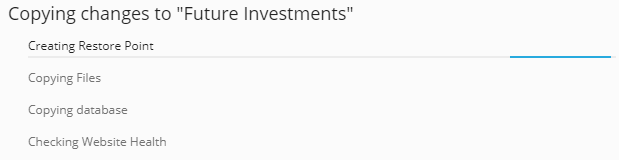
You can copy the content of your WordPress website, including files and database, to another WordPress website.
Example: You have a non-public version (staging) of a WordPress website on a separate domain or subdomain, and a publicly available version (production) of the website on a production domain. In the following situations, it may be helpful to copy data between websites:
- You want to copy the changes you made in the staging version to the production environment.
- You want to copy data from the production website to the staging website to see how the changes (e.g., a new plugin) work along with the data from the production environment. Once you are sure everything is working fine, you can copy your changes to the production website.
- You have made some changes to the staging website (e.g., installed a new plugin) that have added new tables to the database. You only want to copy these tables to the production website without modifying other data.
- You have performed an upgrade to a new WordPress version for the staging website and resolved any potential issues after the upgrade. Now you want to transfer these changes to the production website.
- You can copy the WordPress files, the WordPress database, or both. When copying the database, you can either select all tables, only the tables present on the source server but missing on the target server, or individual tables.
Consider the following when copying:
- The selected data will be copied from the source website to the target website. Files and database tables that exist in both the source and target but are not identical will be copied from the source to the target. Files and database tables that exist only on the target will not be affected. However, this does not apply if you select the "Remove missing files" option while copying.
- When copying, the target website will be put in Maintenance Mode. It will be temporarily unavailable.
- If the target website has an older version of WordPress installed compared to the source website, an upgrade to the version of the source will be performed first on the target via WP Toolkit. Then the data will be copied.
- If the WordPress version on the source website is older than the one on the target website, data cannot be copied. Upgrade WordPress on the source to at least the version installed on the target.
- If the source and target websites have different database prefixes, WP Toolkit will first adjust the database prefix of the source to match the target.
- Copying data between a multisite installation and a single site installation is not supported. We recommend cloning the data instead.
To copy data between WordPress websites:
-
Go to WordPress and then click on Copy Data on the card of the WordPress installation you want to copy.

-
Select the WordPress installation (in the same or a different subscription) you want to copy the data to beside "Destination".
-
Under "Data to be copied", select the data you want to copy to the WordPress target website:
-
"Files Only": Only the website files, including important WordPress files and files for themes and plugins, will be copied.
Please note: By default, the fileshtaccess,web.config, andwp-config.phpare not synchronized as changes to these files could disrupt the operation of WordPress. -
"Database only": Only the database will be synchronized. You can choose to import all, only new, or only selected database tables. More details can be found below in Step 5.
-
"Files and database": Both the website files and the database will be copied. You can choose to import all, only new, or only selected database tables. More details can be found below in Step 5.
-
-
If you selected "Files only" or "Files and database" in Step 3, two additional options will become available (unless hidden by the Plesk Administrator):
- "Replace modified files on the destination": If a file with the same name exists in both the source and destination, the destination file will be replaced by the source file by default. This also applies if the source file is older. Uncheck the checkbox if you do not want destination files to be replaced by older source files.
- "Remove missing files": By default, a file that exists in the destination but is missing in the source will be left untouched. Check this checkbox to remove destination files that are missing in the source.
-
If you selected "Database only" or "Files and database" in Step 3, specify which database tables should be copied:
- "All tables" (default option). To copy all changes except for pages, posts, and users, leave the checkbox "Except: _postmeta, _posts, _usermeta, _users" selected.
- Only new tables
- Selected tables. Click "Select tables to copy", choose the tables, and then click Select.
-
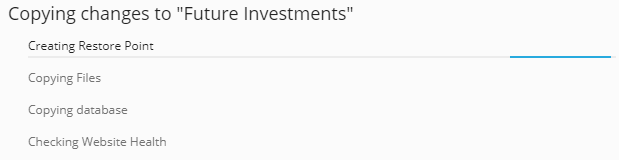
Before copying data, WP Toolkit suggests creating a restore point. You can use it to undo the changes made during copying. If you do not want to create a restore point, uncheck the "Create restore point" checkbox. Learn how to restore your WordPress installation using the restore point in the section below titled "Restoring a WordPress Installation".
Please note: Each WordPress installation can only have one restore point. Creating a restore point will overwrite the existing restore point, if any. -
After selecting the desired options, click Start.