If a WordPress website is in maintenance mode, the content is not visible to visitors. Users who visit your website in this case will see a web page indicating that the site is undergoing maintenance.
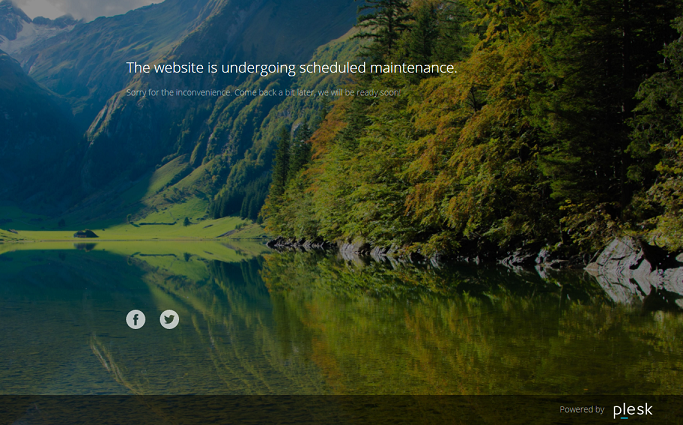
Enabling Maintenance Mode
For your WordPress website, maintenance mode is automatically enabled if the following conditions are met:
- You are performing an upgrade for the WordPress installation.
- You are copying data between WordPress websites.
If you are making changes to your website and want to temporarily make the site unavailable to visitors, you can manually put the website in maintenance mode.
To enable maintenance mode for a WordPress website:
-
Go to WordPress and select the WordPress installation that you want to put in maintenance mode.
-
Enable "Maintenance mode" on the installation card.
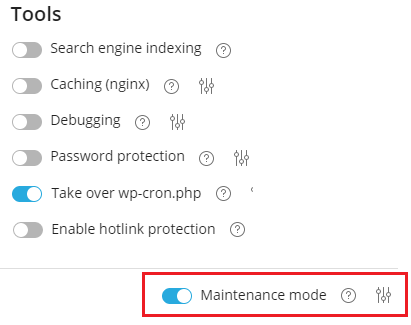
If you no longer want to use maintenance mode, disable the option.
Customizing the Maintenance Page
WP Toolkit allows you to change certain attributes of the maintenance page to provide more information to website visitors. For example, you can:
- Change the text on the maintenance page
- Specify the duration of the maintenance mode using a timer
- Show or remove links to social media
To customize the maintenance page:
-
Go to WordPress, select the WordPress installation whose maintenance page you want to customize, and then click the icon
 next to "Maintenance mode" on the installation card.
 -
Enter the desired text in the corresponding section. You can use HTML tags to format the text.
-
In the "Timer" section, you can set up the timer and enable the countdown displayed on the maintenance page.
Please note: This time specification is meant to provide visitors with an approximate duration of the maintenance. The maintenance mode will not be disabled for the website when the time runs out. You will need to perform this step manually. -
In the "Social Media Links" section, you can specify links to your social media account pages (Facebook, Twitter, and Instagram) and remove unwanted entries.
-
Click OK.
If you have programming skills, you can further customize the maintenance page.
To customize the maintenance page for a specific website:
- Go to WordPress, select the WordPress installation whose maintenance page you want to customize, and then click the icon next to "Maintenance mode" on the installation card.
- Click Customize and edit the maintenance page template in the code editor.
- Click OK.
Restoring the Default Maintenance Page
If necessary, you can restore the default maintenance page.
To restore the default maintenance page:
- Go to WordPress and select the WordPress installation whose maintenance page you want to restore to the default setting.
- Click the icon next to "Maintenance mode" on the installation card and then click Restore Default.